
How to prepare a job in V-CUT before the first cut
Load the approved file, check the required tools with ToolCheck, set the datum, trace the job boundary and run the path above the material.
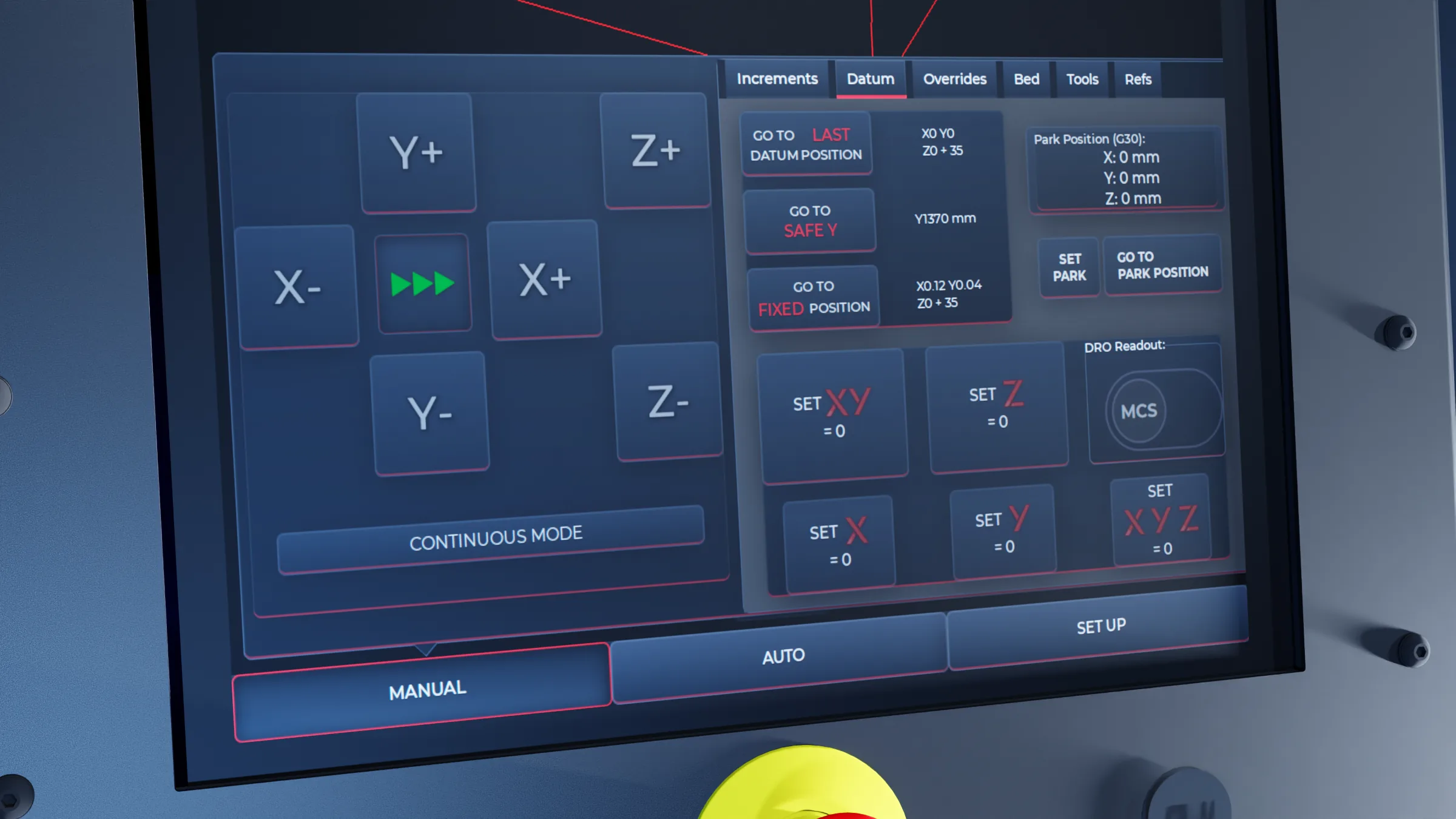
V-CUT is the control system used to prepare, run and recover a job on the Vector VR2. Before cutting, a trained operator can use it to confirm the file, tools, datum, sheet position and programmed movement. These checks do not replace training, the right tooling or a safe setup.
Bring the machine to a known position
Engage the machine and use HOME ALL before jogging or setting the job. Homing establishes the reference position for each axis. Check that the head has a clear travel path before moving it.
Load and identify the approved file
JobVault, the approved file store, keeps job files in one place. Routes can include local storage, an authorised USB drive, an approved cloud location or a shared Windows folder. For supported Vectric workflows, CAMLink, the Vectric handover, creates a standard job card and organised folders for transfer to the machine.
Open the .ngc file from AUTO → File. When it loads, V-CUT shows the file name, toolpath, job dimensions, total travel and estimated time. Confirm that these match the job you intend to run before continuing.
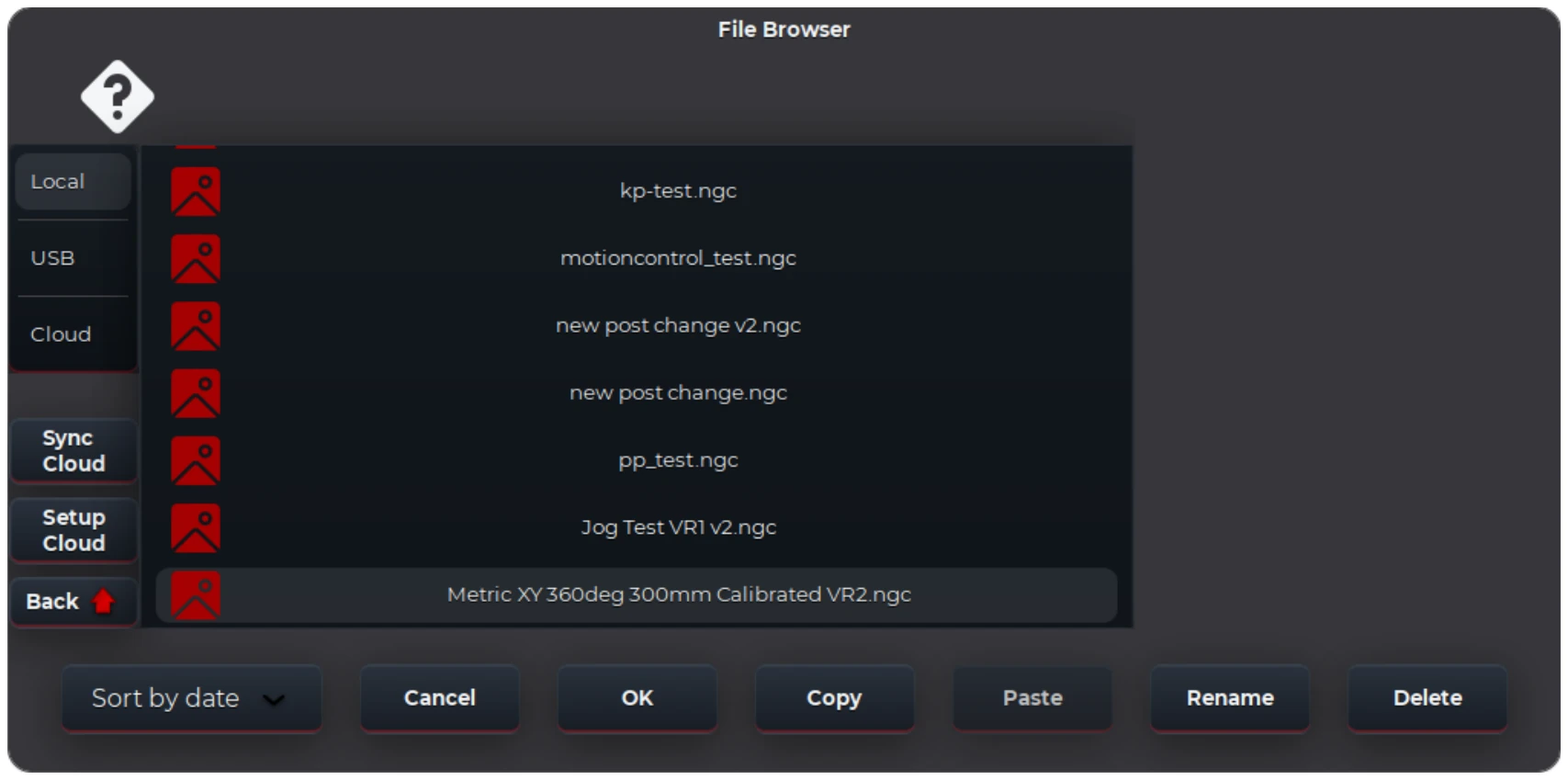
The File Browser brings the approved file sources and available G-code files into one view.
Check the tools and datum
ToolCheck, the required-tool list, shows which tools the loaded job needs. Check that each required tool is fitted in the expected station and is suitable for the material and operation. Where tool measurement is required, the MANUAL → Tools controls can measure selected tools using the machine’s tool-probing system.
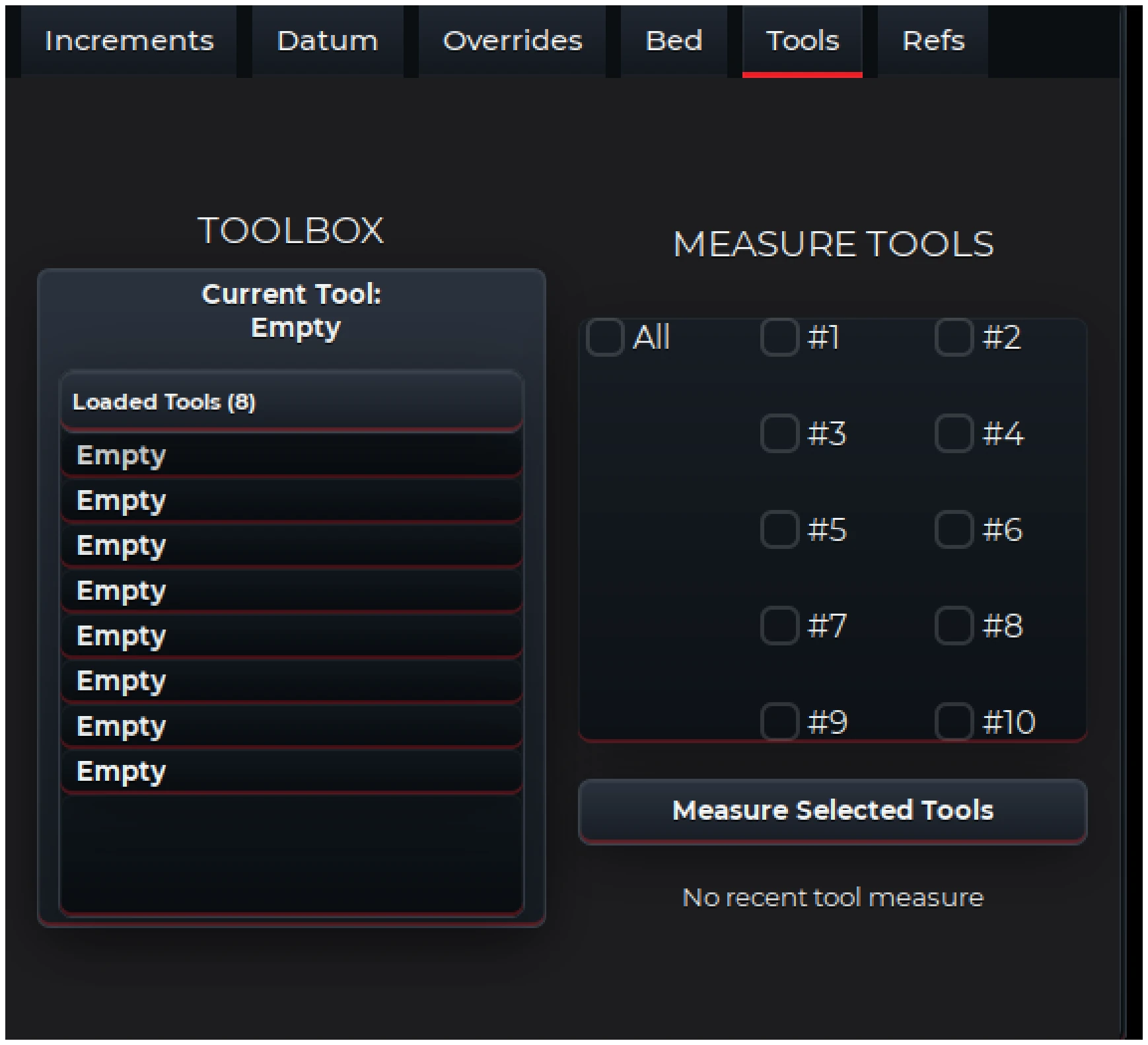
The Tools screen shows the loaded stations and lets the operator select the tools that need measuring.
Set the work datum for the sheet and confirm the correct work offset is shown as ACTIVE DATUM. DatumBank, saved setup positions, stores selectable datum offsets for sheets, fixtures and work positions used regularly. A recalled datum still needs to match the current physical setup.
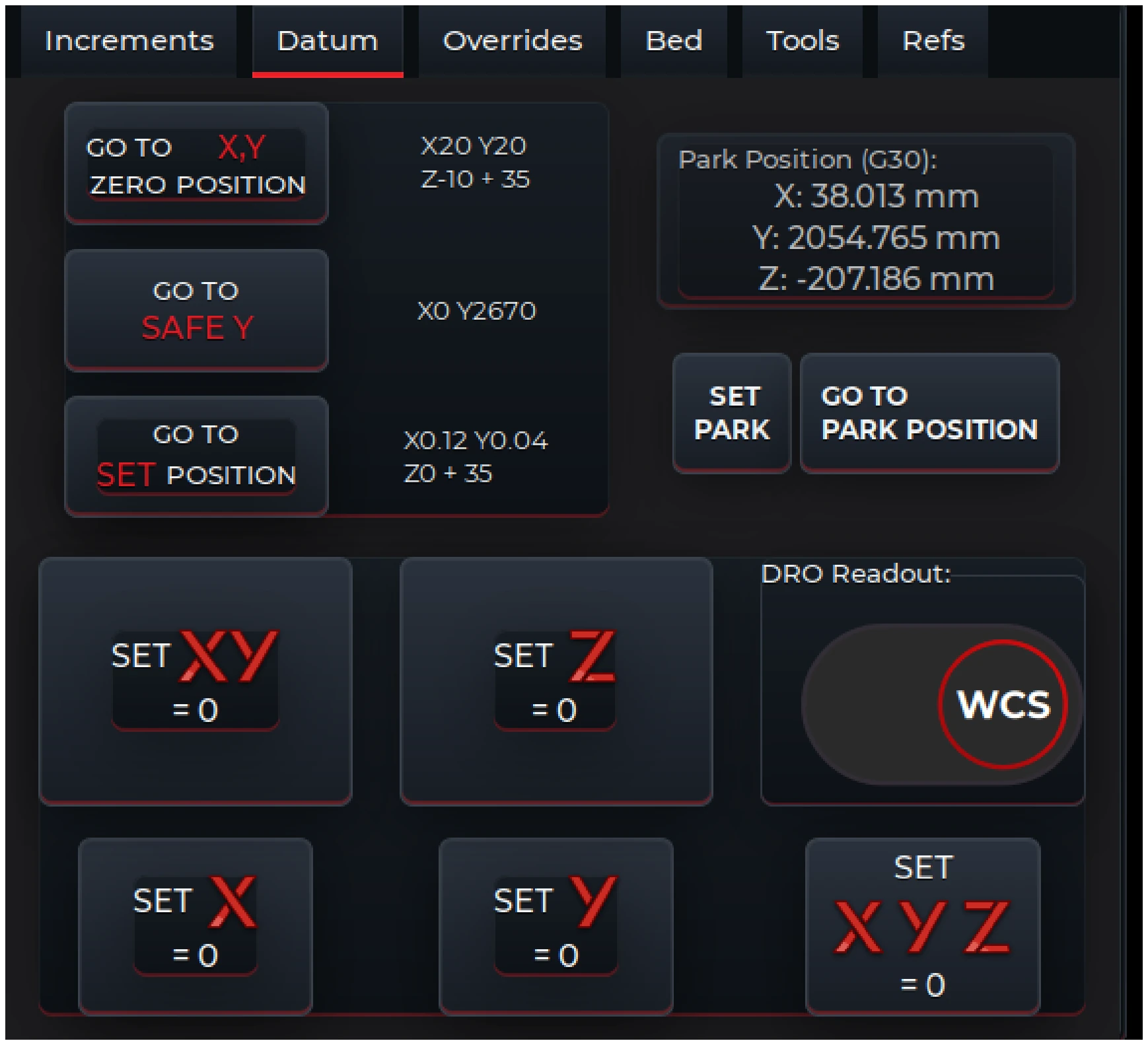
The Datum screen separates work-zero controls from stored park and machine positions.
Secure the sheet and clear the route
Secure the material using the hold-down method specified for the job. Select the required vacuum zones on equipped machines. Keep clamps, stops and other obstructions outside the cutting path and the head’s travel route.
Frame the boundary
Use FRAME JOB to move around the outer boundary of the loaded job. Check that the programmed area sits on the sheet and remains clear of clamps, stops and the limits of the usable table area.
Verify the path above the material
Use the elevated path verification to run the programmed path 50 mm above the material. Before starting, confirm that the configured DRY RUN Z CLEARANCE HEIGHT is suitable for the current sheet, tooling and fixtures. V-CUT reports Not enough clearance for safe dry run! if the configured clearance cannot be used.
The dry-run clearance is not the same setting as the Safe Z generated by the CAM post-processor. Both must be correct for the job.
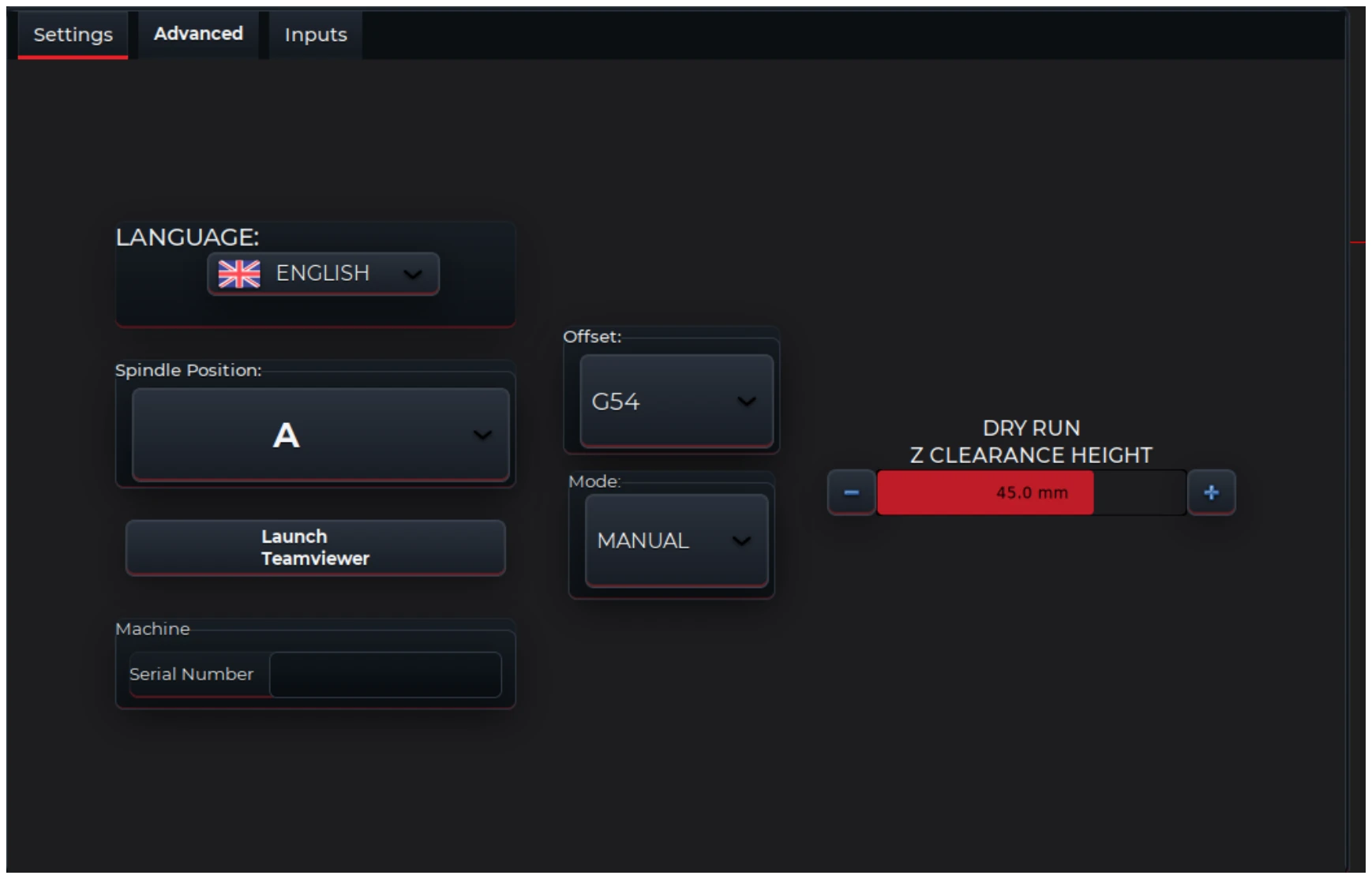
The Settings screen shows the active work offset and the configured dry-run clearance. Values shown are examples, not recommended settings.
Make the final checks
Table Guard, spoilboard and safe-Z protection, helps reduce the risk of an unintended plunge into the spoilboard or machine structure. It does not make a table strike impossible.
Before pressing Run, confirm the current G-code file, current tool, active datum and displayed toolpath again. Make sure the sheet is secure, the work area is clear and no one can reach the tool or enter the protected area.