Developed in Europe

V‑CUT CNC router control software for Vector VR2

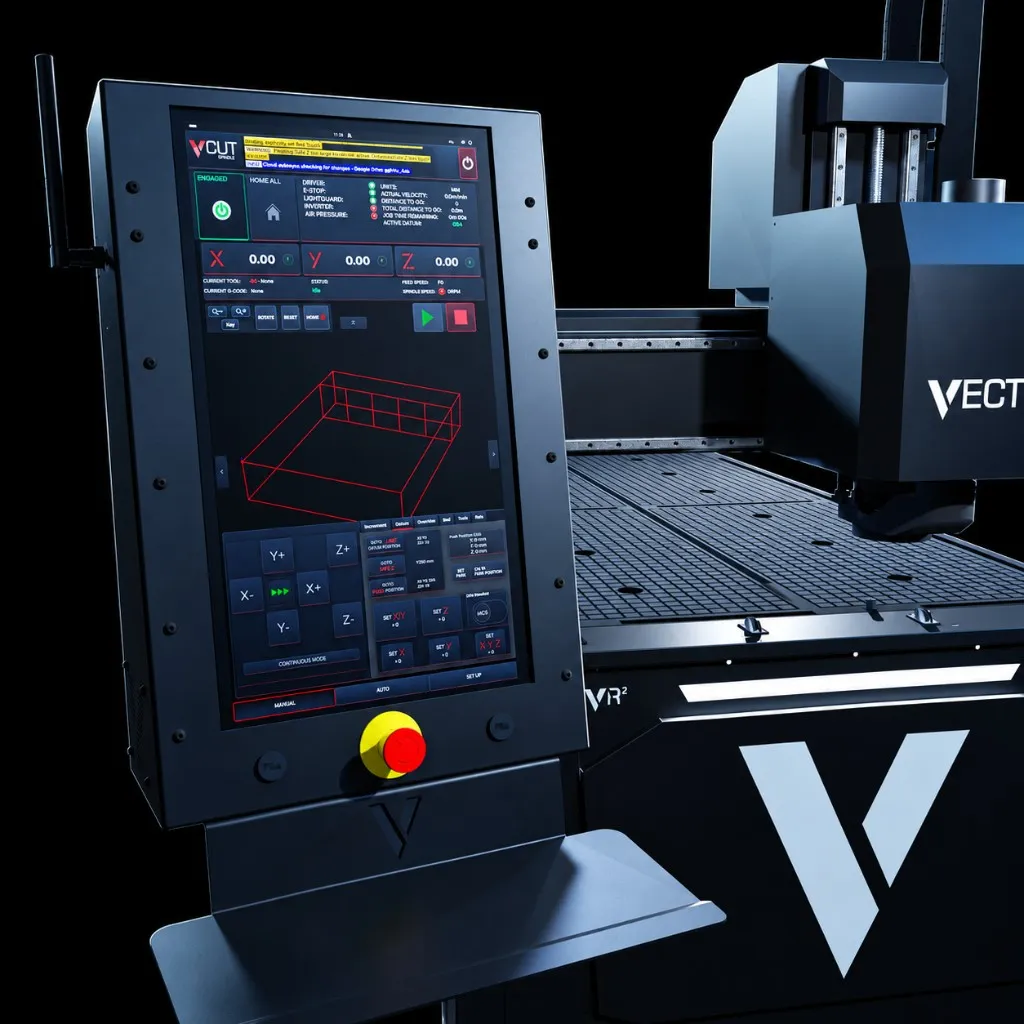
V-CUT is the operator-facing control system for the VR2. Setup, machine position, tools, files, live progress, restart and service information are brought into one touch-led environment.

V-CUT is developed in Europe by DXF Machinery for the Vector VR2 platform.

Development
Europe

Developed by DXF Machinery

Job view
TouchView

2D and 3D on the display

Before cutting
Table Guard

Spoilboard and safe-Z checks

After a stop
SmartRestart

Controlled return to the job

Explore V-CUT

From Job Setup to Final Cut

Explore how V-CUT brings job preparation, cutting controls and support information together. Select a stage to take a closer look.

An interactive overview of V-CUT’s features. For machine operation, follow the supplied training and operating instructions.

Stage 1 of 6

V-CUT screen preview

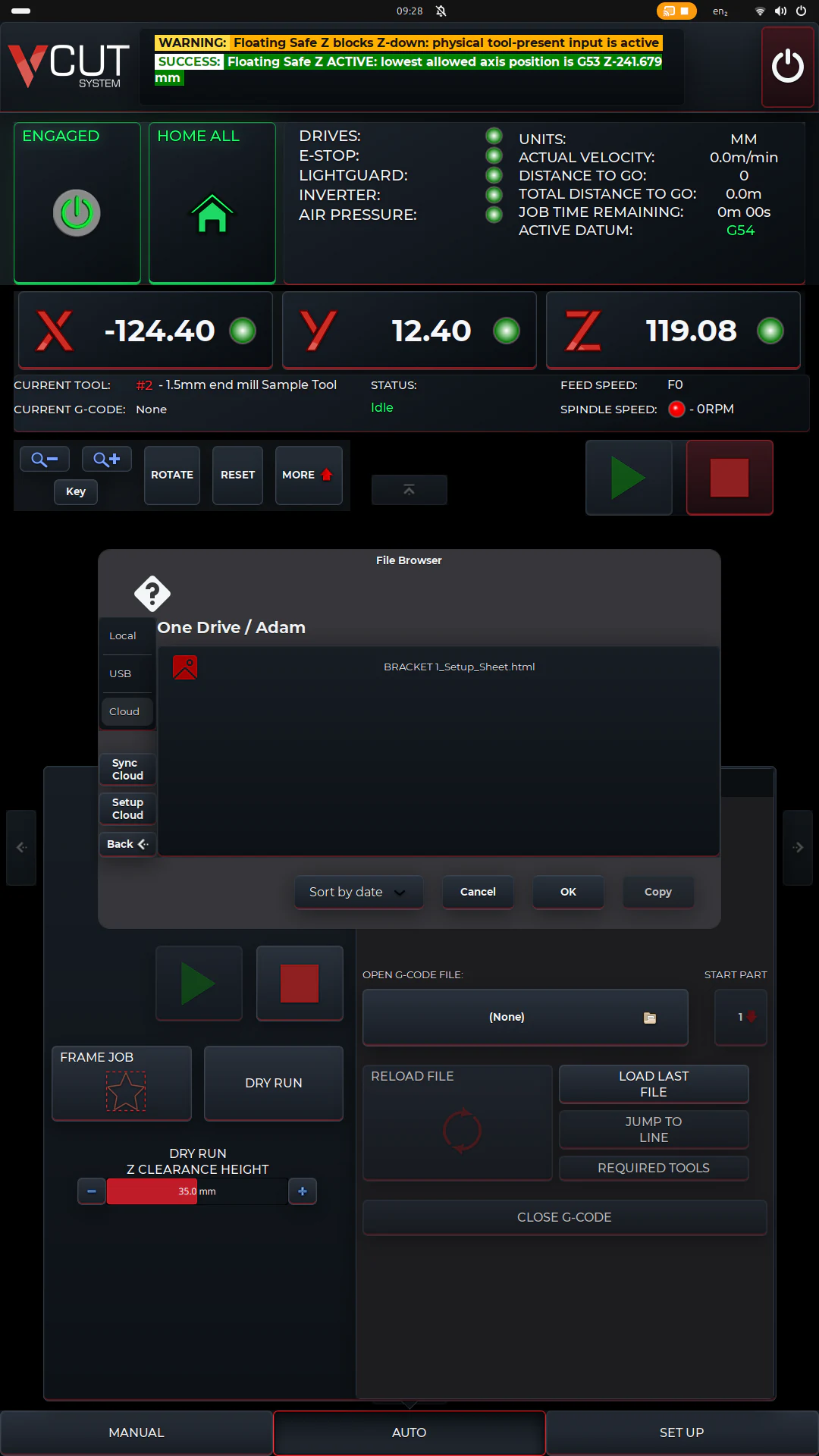
Choose an approved job from a supported local, USB or cloud file location.

Stage 01

Set Up Your Job

Load your approved job file, select the work datum and review the required tools. Bring the key setup details together before moving on to the pre-cut checks.

Explore Job Setup
V-CUT job card

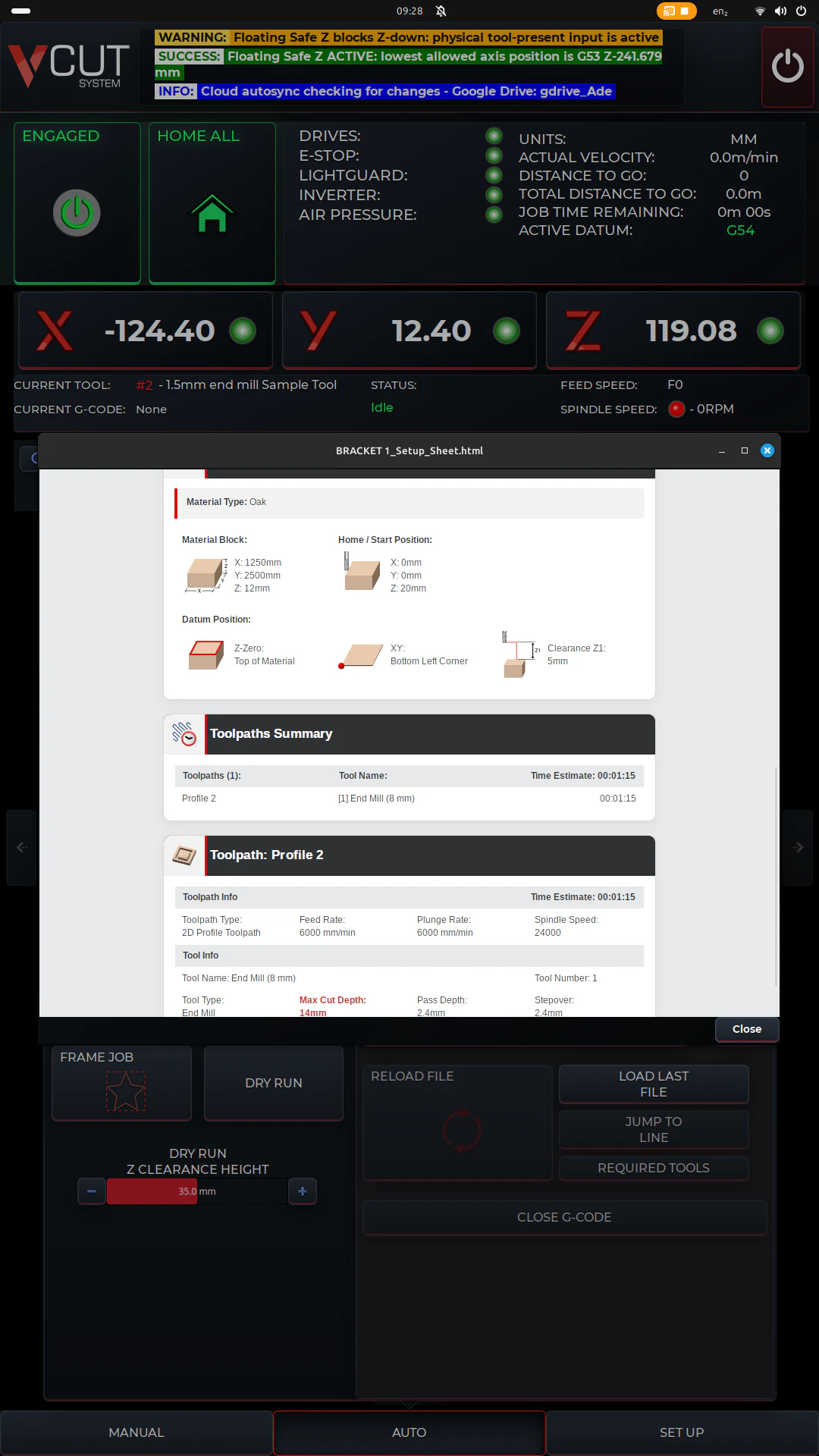
Job card with material, datum and toolpath details for a VCarve job.

Stage 02

Job Card View

CAMLink brings job information prepared in VCarve into a structured job card. Review the material, datum and toolpath details for the loaded job at the machine.

Explore CAMLink

V-CUT screen preview

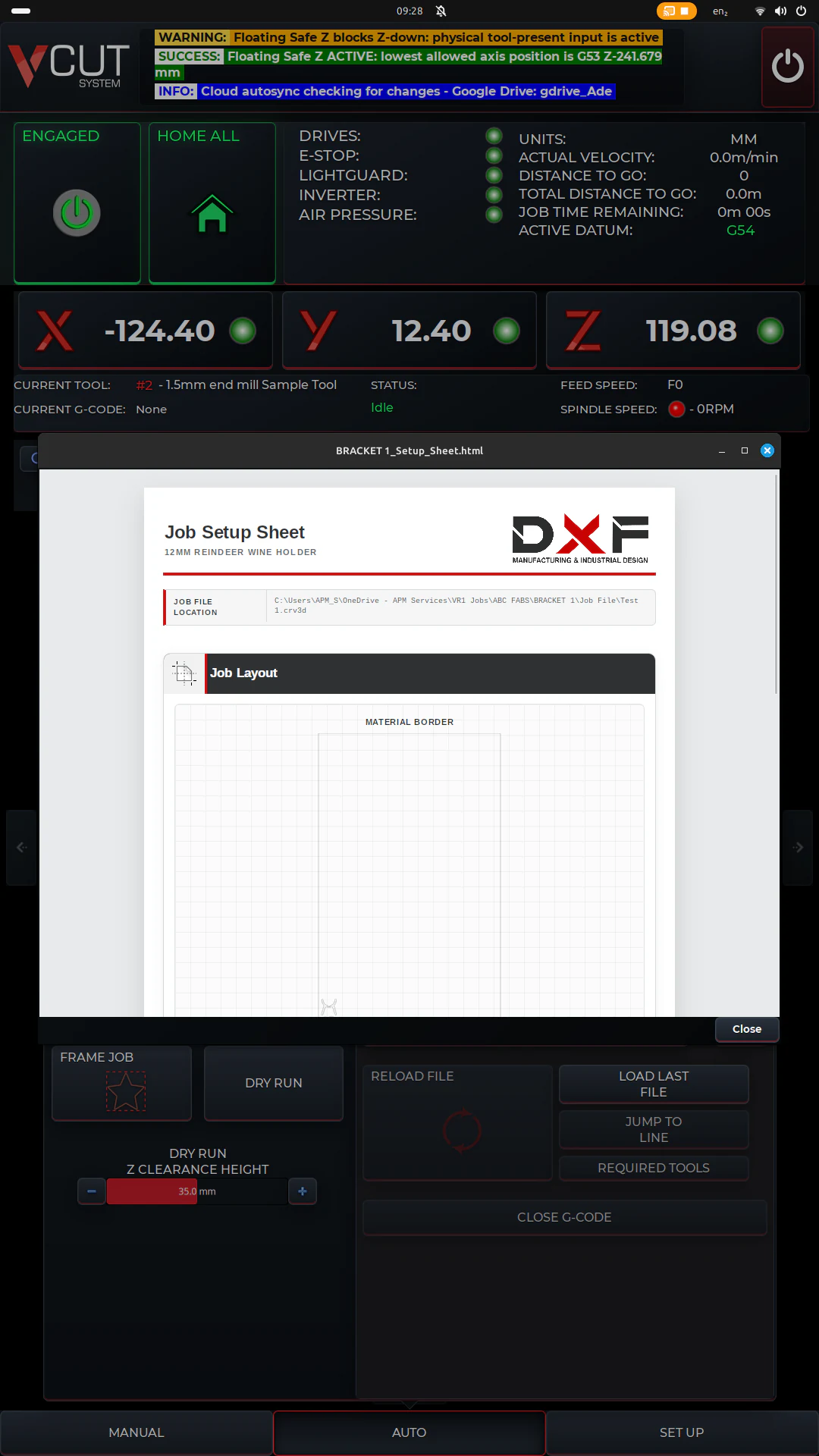
Review the job setup sheet alongside framing, dry-run and required-tool controls.

Stage 03

Check Before Cutting

Check the job dimensions and its position on the sheet, then verify the tool’s travel above the material. Spot potential setup issues before the first cut.

Explore Pre-Cut Checks

V-CUT screen preview

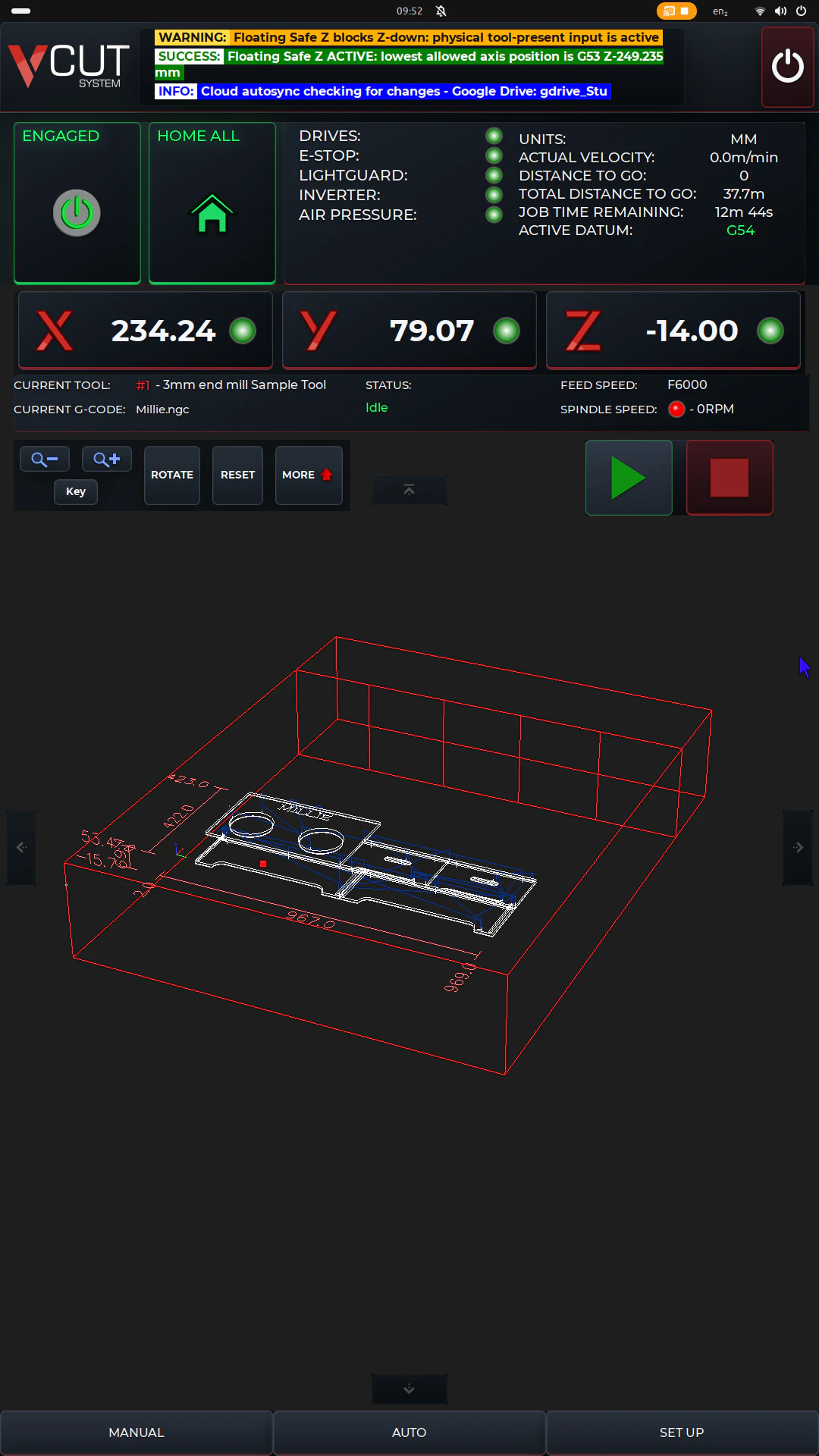
Machine coordinates, operating status and a loaded 3D job view in the automatic workspace.

Stage 04

Monitor Your Job

Follow the job as it runs, with machine position, cutting status and estimated time remaining in one view. Keep track of progress without switching between screens.

Explore Production Controls

V-CUT screen preview

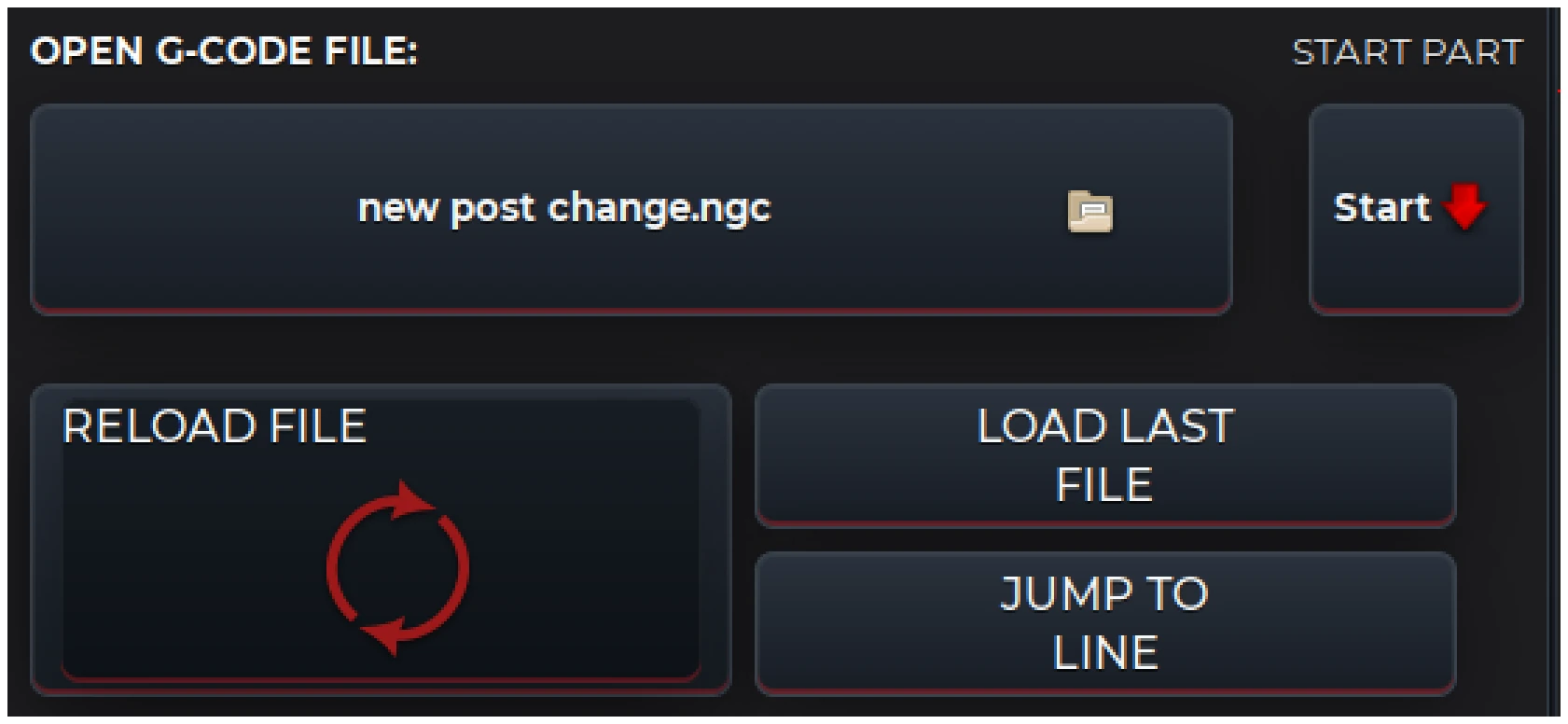
Use the file controls to reload the last job or select Jump to Line as a controlled restart route.

Stage 05

Resume Interrupted Work

SmartRestart and LiveRewind help trained operators review the program and return to a suitable restart point. Resume interrupted work using V-CUT’s controlled recovery options.

Explore Job Recovery

V-CUT screen preview

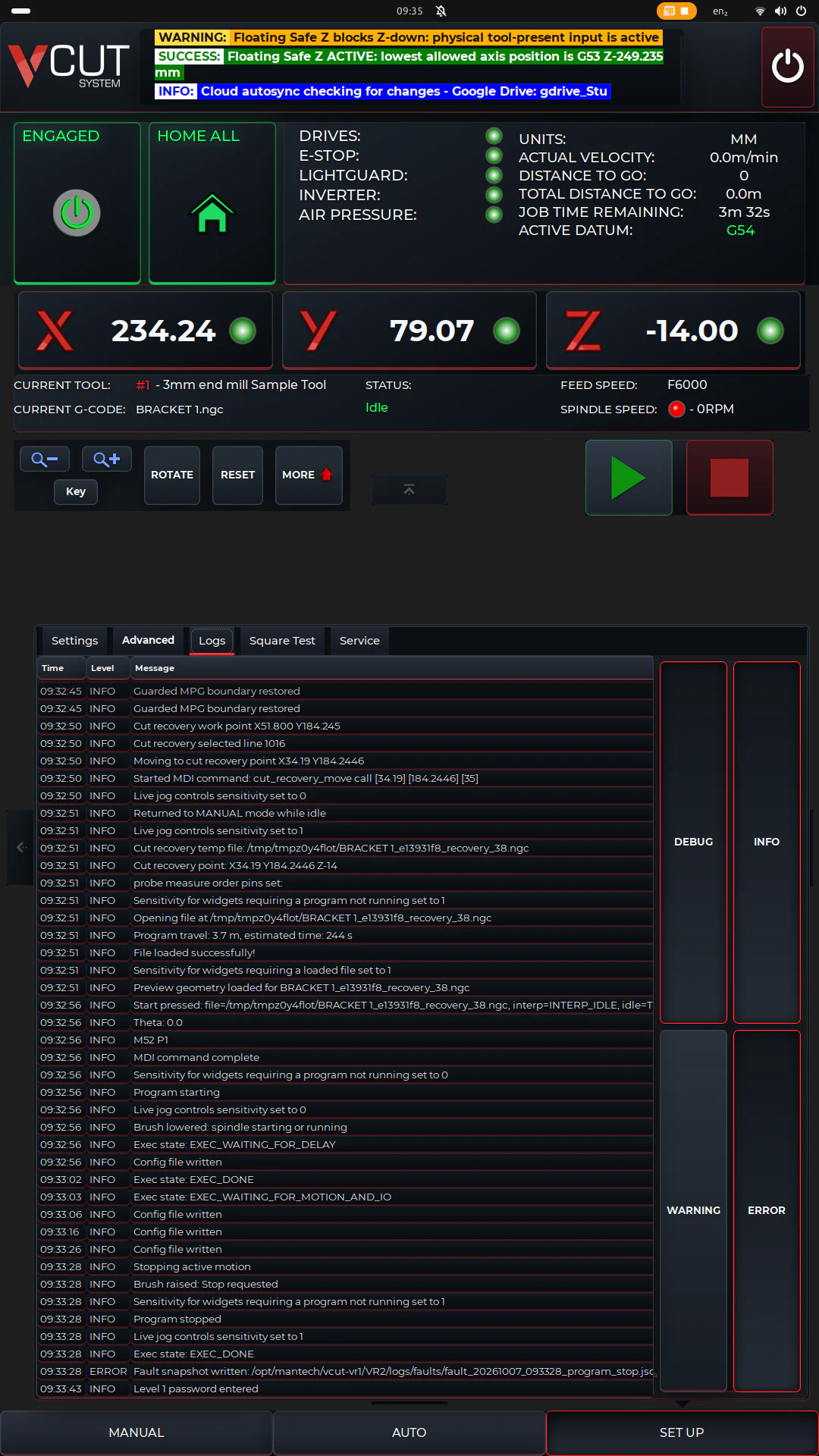
Time-stamped diagnostic logs with filters for debug, information, warning and error messages.

Stage 06

Access Diagnostics and Support

Find machine details, operating logs and service data in V-CUT to help the support team investigate an issue. Access levels keep settings and service functions available to authorised users.

Explore Support Features

Considering the Vector VR2?

Find the Right VR2 for Your Business

Tell us what you cut, the sheet sizes you use and what you need to produce. We’ll help you choose the table size, spindle and options that suit your work, and explain how V-CUT fits into your day-to-day production.

Talk to Our Team

Your job at a glance

Know Where Your Job Stands

V-CUT screen preview

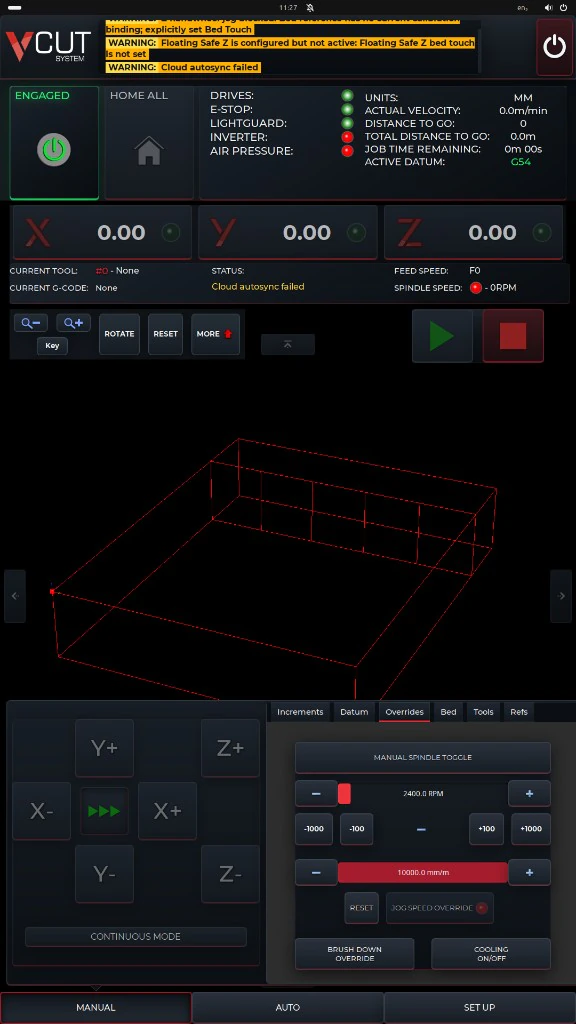
Machine coordinates and spindle and feed override controls together in the manual workspace.
  • TouchDRO

    View machine and work coordinates, with touch controls to select and reset coordinate values.

  • JobTrack

    See how far the machine has left to travel and the estimated time remaining, for both the current program line and the complete job.

  • TouchView

    Inspect your job in 2D or 3D using multi-touch controls, with dimensions, cutting paths and travel moves clearly displayed.

  • ToolCheck

    See which tools the loaded job requires, so you can check your tooling before cutting begins.

Before cutting

Check Your Setup Before the First Cut

  • Table Guard

    Set spoilboard protection and safe Z-height limits to help prevent unintended tool plunges into the machine bed.

  • Check the Job Boundary

    Trace the job’s outer boundary to check its position on the sheet and its clearance from clamps and stops before cutting.

  • Preview the Toolpath Above the Material

    Run the programmed toolpath 50 mm above the material to check machine movements and spot potential setup issues before cutting begins.

  • DatumBank

    Save and recall datum positions for regularly used sheets, fixtures and setups, reducing repetitive positioning work between jobs.

After an interruption

Get Back to the Job with SmartRestart

SmartRestart helps trained operators resume interrupted work from a suitable point in the program. Choose from several controlled restart options to help recover the job and reduce wasted material.

V-CUT screen preview

Use Jump to Line to select a controlled restart point in the loaded program.
  • Restart from a Program Line

    Choose the G-code line to restart from and position the tool close to the corresponding cutting path.

  • Restart from a Profile

    Select a point on a recognised profile in the job view to identify where to resume cutting.

  • Select a Restart on Screen

    Select the cutting-path line you want to restart from directly on the V-CUT touch display.

  • LiveRewind

    Use the handwheel to review movement through the program and choose a suitable restart position.

Everyday tools, built in

From Job Files to Quick Cuts

  • JobVault

    Access your job files from one place, using local storage, authorised USB drives, approved cloud locations or shared Windows folders.

  • CAMLink

    Prepare jobs for the machine directly from Vectric. CAMLink creates a standard job card and organised folders to keep each handover consistent.

  • QuickCut

    Trim, divide or square a sheet directly at the machine. Define a simple cut using two or three points, without creating a new CAM program.

  • SmartSkim

    Resurface your spoilboard using built-in skimming programs. Choose horizontal, vertical or diagonal passes and adjust the stepover to suit the task.

User access and diagnostics

Give Each User the Access They Need

  • Operator

    Access the controls needed for everyday production, from loading and setting up jobs to running the machine and adjusting permitted offsets.

  • Owner

    Manage tool setup and machine references, back up and restore settings, and access logs, tests and service information.

  • Service

    Give trained technicians access to commissioning, calibration and motion tests, with live input/output signals and detailed diagnostics to help investigate faults.

  • ServiceTrack

    Track machine running time, spindle use, axis travel and recorded service events in one place to support maintenance and fault diagnosis.

Common questions

What to expect from V-CUT

Is V-CUT only a different screen for a standard controller?

No. V-CUT is developed in Europe by DXF Machinery and brings preparation, machine feedback, restart, files, permissions and service information into one operating environment.

Does Table Guard make a table strike impossible?

No. Table Guard applies configurable spoilboard and safe-Z protection to reduce risk. Training, correct tooling and safe setup are still required.

Does JobVault guarantee that files cannot leave the business?

No. JobVault helps control normal file routes and approved locations. It supports the customer’s wider IT policy but is not an absolute data-loss guarantee.